SPF, DKIM and DMARC explained without the jargon
Three short DNS records decide whether inboxes trust email from your domain. Here is what each one does, using everyday analogies, and how to set them up.
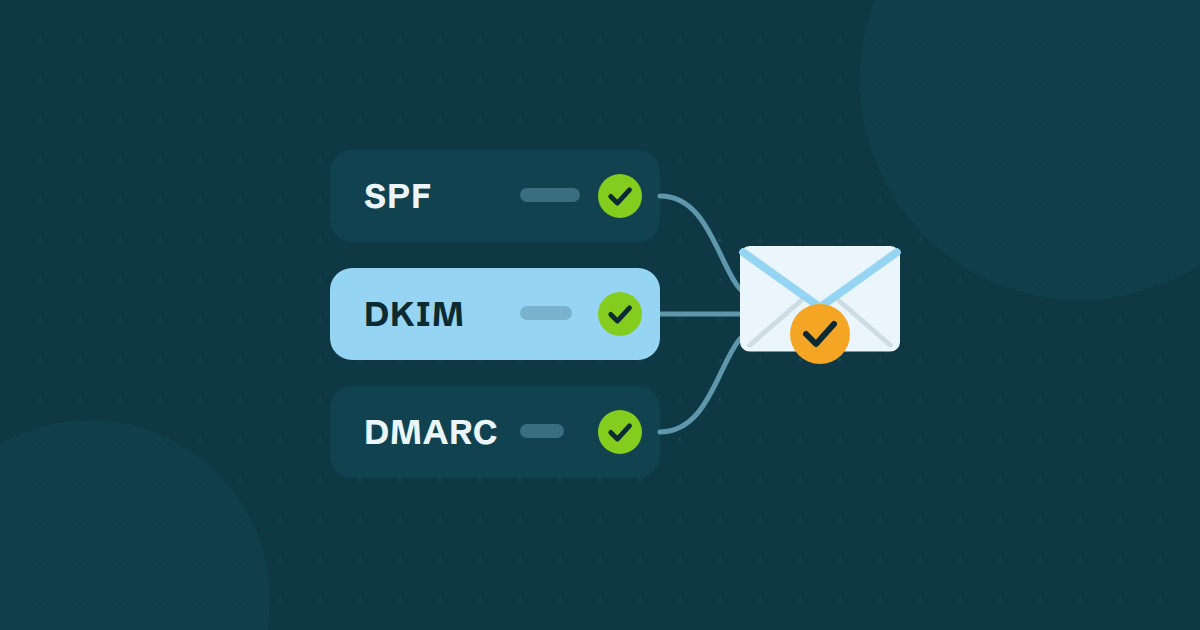
If you have ever looked into why your WordPress emails land in spam, you have met three strange acronyms: SPF, DKIM and DMARC. They sound like something only a network engineer should touch. They are not. Each one is a short note stored in your domain's settings, and each answers a simple question.
This post explains them with everyday comparisons, shows what they look like, and tells you how to add them.
Why they exist
Email was designed in an era when anyone could write any "From" address on a message. That is how scammers send mail pretending to be your bank, or your business.
Inbox providers fought back with a set of checks. Since 2024, Google and Yahoo have asked every sender to authenticate, and bulk senders to use all three records with a From address that matches the domain. Even if you only send a few receipts a day, these records are how a mail server decides whether to trust you.
SPF: the guest list
What it answers: which servers are allowed to send email for my domain?
Think of a party with a guest list at the door. SPF, short for Sender Policy Framework, is that list. It is a single TXT record in your DNS that names the services allowed to send as you: your mail provider, your newsletter tool, your sending service.
When a message arrives claiming to be from you@yourstore.com, the receiving server looks up your list and checks whether the sending server is on it. If not, the message looks suspicious.
SPF is defined in RFC 7208. Two things catch people out:
- You can only have one SPF record per domain. Two records cancel each other out. If you add a new service, add it to the existing record.
- There is a limit of 10 DNS lookups. The same RFC caps how many other names an SPF record may ask a server to look up. Pile on too many services and the whole record stops working.
A typical record looks like v=spf1 include:example.net ~all. You do not have to write it from scratch; your sending service tells you what to add.
DKIM: the wax seal
What it answers: was this message really sent by you, and was it changed on the way?
Imagine every letter you post is stamped with a wax seal that only you can make. Anyone can inspect the seal, but nobody can fake one, and if the envelope is opened and resealed, the seal breaks.
DKIM, DomainKeys Identified Mail, works like this. Your sending service signs each outgoing message with a private key it keeps secret. You publish the matching public key in your DNS. The receiving server uses that public key to check the signature. If it matches, the message is genuine and untouched. This is defined in RFC 6376.
The DKIM record is usually a long string or a CNAME pointing to your sending service's key. You copy it exactly as given. Mistakes here are almost always typos or a DNS host that adds your domain name a second time.
DMARC: the house rules
What it answers: what should be done with messages that fail the checks, and who tells me about them?
SPF and DKIM do the checking. DMARC is the policy that sits on top. It says two things: the From address people see must line up with the domain that passed SPF or DKIM, and here is what to do when it does not.
RFC 7489 defines three policies:
| Policy | What you are asking receivers to do |
|---|---|
none |
Do nothing special, just send me reports |
quarantine |
Treat failures with suspicion, usually spam folder |
reject |
Refuse failures outright |
DMARC also lets you name an address for reports with rua=. Those reports are daily summaries from big inbox providers showing who is sending mail as your domain, and whether it passes.
The sensible way in is to start with p=none. Read the reports for a few weeks, fix anything legitimate that is failing, and only then think about stricter policies. A record might look like this:
v=DMARC1; p=none; rua=mailto:dmarc@yourstore.com
How the three fit together
| Record | Analogy | Where it lives |
|---|---|---|
| SPF | The guest list at the door | A TXT record on your domain |
| DKIM | A wax seal only you can make | A record at a "selector" name under _domainkey |
| DMARC | The house rules and the report back to you | A TXT record at _dmarc |
None of them guarantees the inbox. They tell receivers that the mail is honestly yours, which removes a major reason to distrust it.
Adding the records, step by step
- Find your DNS host. This is wherever your domain's nameservers point: your registrar, your web host, or a service like Cloudflare. The place you bought the domain is not always the place that runs its DNS.
- Look at what is already there. Check for an existing SPF record (a TXT starting
v=spf1) and an existing_dmarcrecord. Edit rather than duplicate. - Add the records your sending service gives you. Copy type, name and value exactly.
- Mind the name field. Many DNS hosts append your domain automatically. If so, enter only the first part, such as
selector1._domainkey. - Do not proxy them. If your DNS host offers a proxy option, as Cloudflare does, leave it off for these records.
- Wait, then test. DNS changes can take anywhere from a few minutes to several hours to spread.
- Send a test email to a Gmail address, open the message, choose Show original and look for PASS next to SPF, DKIM and DMARC.
If your site sends lots of email from several services, our guide to why WordPress emails go to spam explains the other common causes.
Common mistakes
- Two SPF records on one domain.
- A DKIM record with a missing or extra character, or the domain name doubled up.
- A DMARC policy set to
rejectbefore checking every legitimate sender. - Adding records at the registrar while the domain's DNS actually lives somewhere else.
Where SendWP fits
SendWP does the awkward part for you. In your dashboard it lists the exact DNS records for your domain, a DKIM record and an SPF record plus a recommended DMARC record, each ready to copy. SendWP then checks the records for you and shows each as configured or needing setup. Mail from your site is sent from your own domain and signed with DKIM.
Step-by-step instructions are in authenticating your domain, and plans start at $9 a month, with the first month $1 on monthly plans. See pricing.